Settings and shortcuts
Collectarr offers rich customization options to tailor the interface, theme, data defaults, and keyboard workflows to your personal collecting preferences.
Open Settings from the main drawer menu (or click the gear icon in the toolbar).
Settings Sections Overview
Section titled “Settings Sections Overview”| Section | Description and Primary Controls |
|---|---|
| Appearance | Theme (Dark/Light), accent colors, cover styling, typography, localization, and date/currency formats |
| Pre-fill Settings | Automatic default values (Location, Condition, Tags, Store) for newly added albums |
| Data | Full database backup (JSON), database restoration, cover cache maintenance, and vacuum |
| Connection | Collectarr Core metadata server, personal cloud synchronization pairing, and sync history |
| Libraries | Collection defaults and enabled media categories |
| Proposals | Status and history of submitted metadata contributions and revisions sent to Core |
| Account | User profile credentials and authentication tokens |
| Logs | Diagnostic activity logs, sync event history, and error reports |
Appearance and Layout
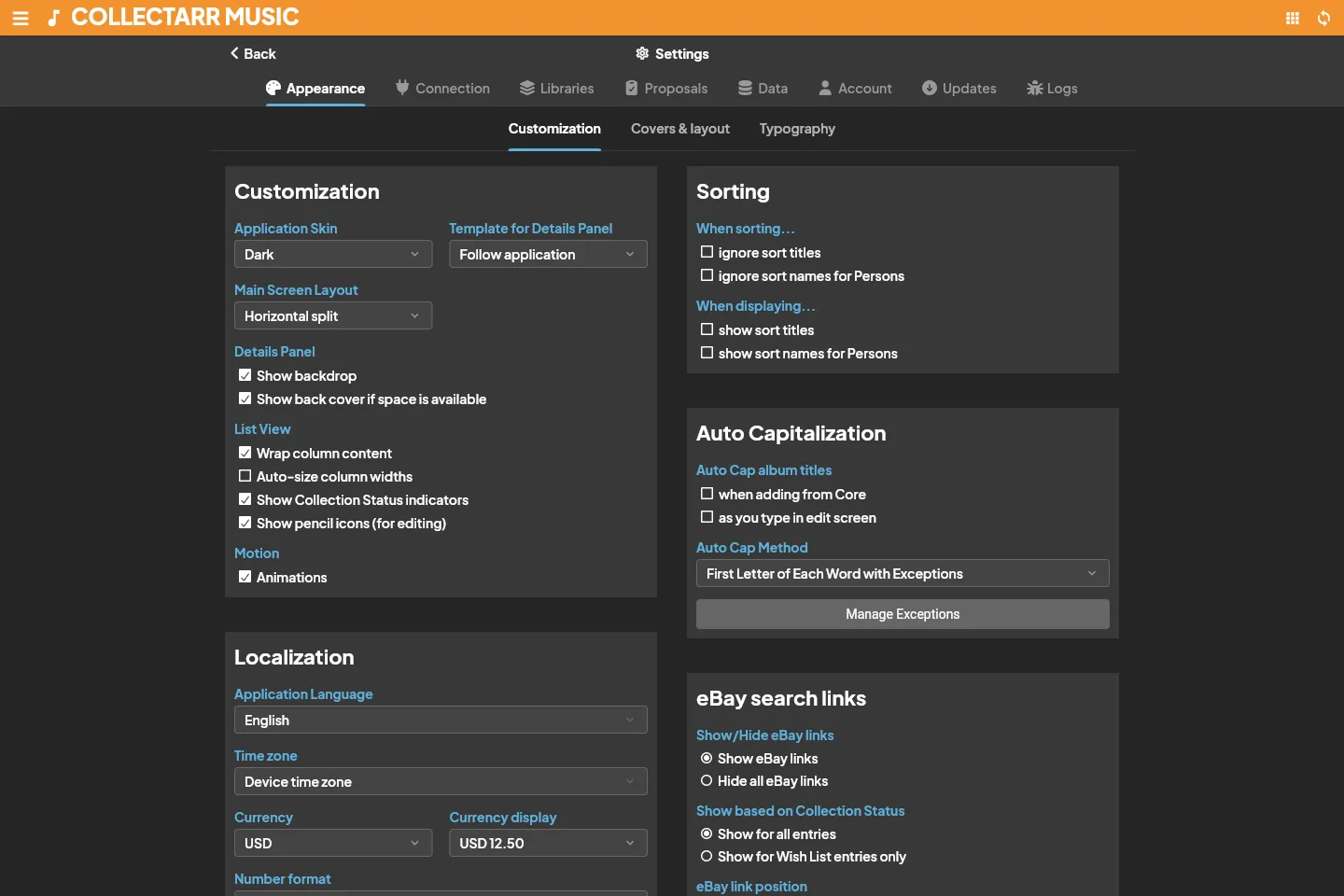
Section titled “Appearance and Layout”The Appearance tab controls how Collectarr looks and behaves across all views and panels.
1. Theme and Customization
Section titled “1. Theme and Customization”- Theme Mode: Switch between Dark Mode, Light Mode, or follow System Default.
- Accent Color: Personalize the highlight accent used across buttons, tabs, selection bands, and active icons.
- Status Indicators: Show or hide color-coded collection status badges (In Collection, Wish List, For Sale) on covers and list rows.
- Action Buttons: Display inline edit and more-options buttons when hovering over albums.
2. Covers & Layout
Section titled “2. Covers & Layout”- Cover Presentation: Choose between standard shadowed covers or enable Flat Covers for a modern, flush look.
- Card Cover Width: Fine-tune the width of cover artwork in Card View between
60px(ultra-compact) and120px(large thumbnail). - Inspector Back Cover: Toggle whether the album details panel shows both front and back covers side-by-side.
- eBay Integration: Show or hide direct links to eBay sold listings next to catalog numbers and cover images.
3. Typography & Localization
Section titled “3. Typography & Localization”- Primary Currency: Set your preferred currency symbol (
$,€,£,¥,lei, etc.) for purchase tracking and valuation totals. - Date Format: Choose your preferred regional date format (
YYYY-MM-DD,DD/MM/YYYY, orMM/DD/YYYY). - Articles Ignore List: Customize the list of leading grammatical articles (
The,A,An,Le,La,Das,Der) bypassed during alphabetical sorting.
Pre-fill Settings
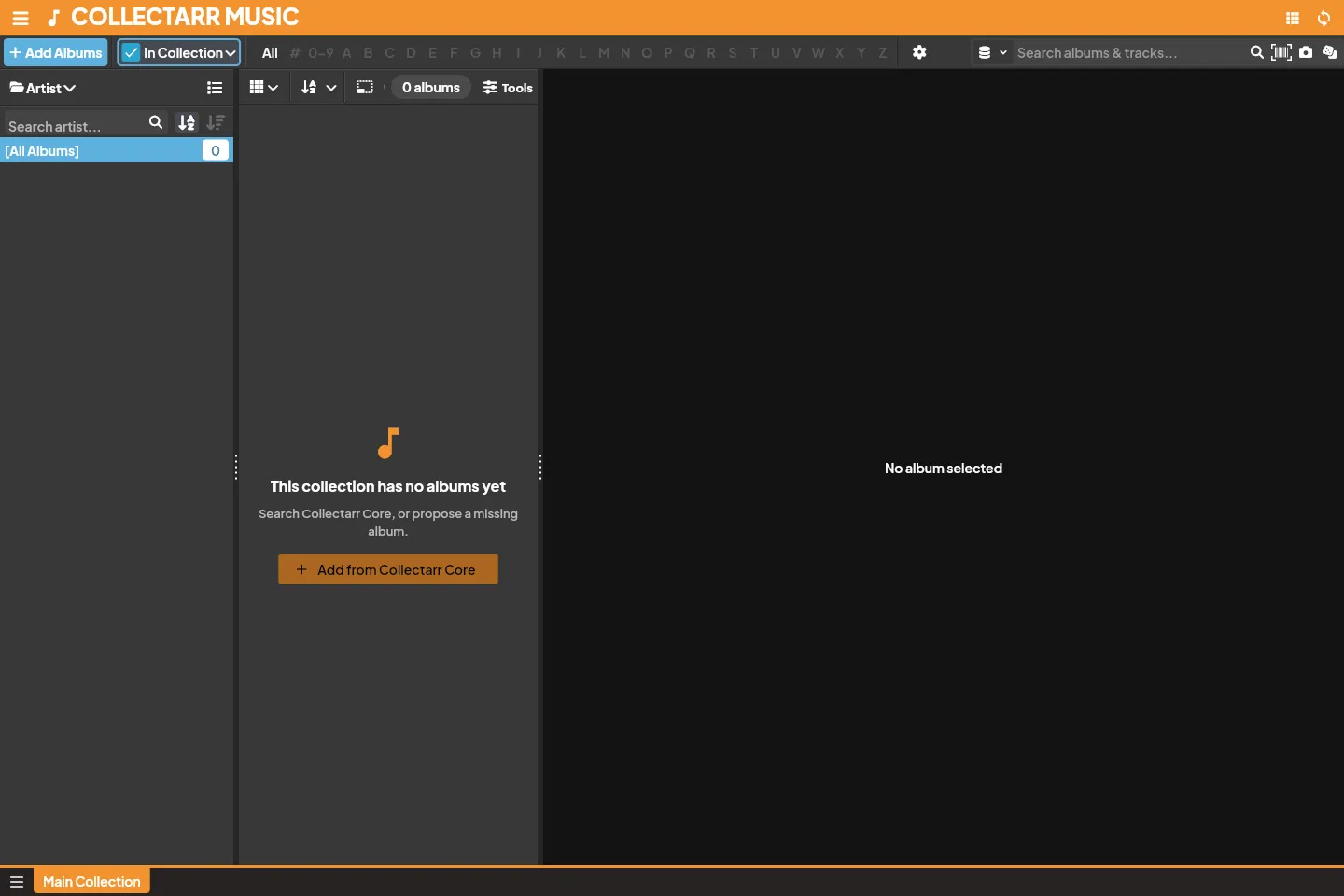
Section titled “Pre-fill Settings”Save time when cataloging new acquisitions by configuring Pre-fill Settings (accessible via drawer menu or Settings):
- Default Storage Location: Automatically assign newly added items to your main shelf or physical rack.
- Default Condition: Pre-select your typical acquisition grade (e.g., Near Mint or Mint).
- Default Tags: Automatically attach common tags (such as
Vinyl 2026orRecord Store Day). - Default Purchase Store: Pre-fill your favorite local record store or online seller.
- Always Show Prompt: Option to review pre-fill values before each album is committed.
[!NOTE] Pre-fill settings apply only to future additions. Changing pre-fill defaults does not alter records already in your collection.
Keyboard Shortcuts Reference
Section titled “Keyboard Shortcuts Reference”Collectarr is optimized for rapid desktop keyboard navigation:
| Shortcut | Context | Action |
|---|---|---|
Ctrl + F / Cmd + F |
Library | Focus the search box |
Ctrl + A / Cmd + A |
Library | Select all visible albums |
Escape |
Global | Clear search, cancel multi-selection, or close dialogs |
Ctrl + S / Cmd + S |
Editor | Save changes and close the editor |
Delete / Backspace |
Library | Delete the selected album(s) (with confirmation) |
< / > (Left / Right) |
Editor | Navigate to previous or next album without closing editor |
F5 / Ctrl + R |
Global | Refresh current view and reload catalog cache |
Ctrl + E / Cmd + E |
Library | Open editor for the currently selected album |