Browsing, search and filters
Collectarr provides flexible browsing presentations, folder grouping trees, instant searching, and an alphabet jump bar to help you navigate collections of any size.
1. Library View Modes
Section titled “1. Library View Modes”You can switch between four distinct display views using the view selector in the main toolbar:
- List View: A spreadsheet-style tabular view showing data in customizable columns. Ideal for sorting, comparing technical details, and managing large numbers of entries quickly. See Columns and sorting.
- Cards View: Visual information cards displaying cover artwork alongside key identifying metadata (Artist, Title, Format, Year, Label, and Rating). Hovering your mouse over any card reveals quick action buttons for editing and details.
- Covers View: A clean, edge-to-edge grid of album covers. Perfect for visual browsing.
- Shelves View: A virtual wooden shelf presentation displaying album sleeves arranged on library shelves, giving your digital database the tactile feel of a physical record collection.
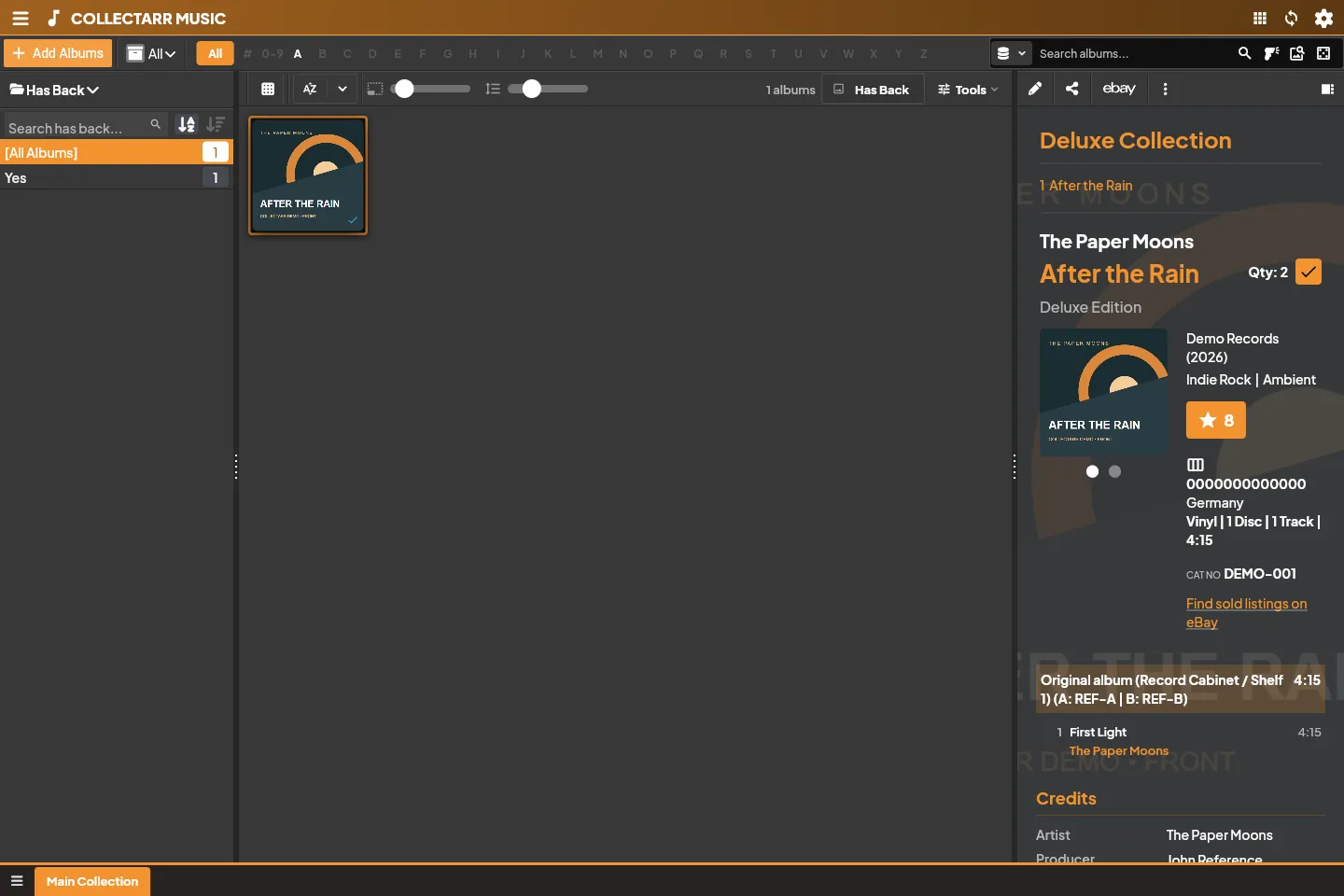
Sizing and Spacing Sliders
Section titled “Sizing and Spacing Sliders”When in Cards, Covers, or Shelves view, the toolbar provides two responsive sliders:
- Cover Size: Adjusts the scale of cover artwork from compact thumbnails to large, high-resolution displays.
- Item Spacing: Adjusts the gap between album tiles or cards without altering outer window margins.
2. Searching Your Library
Section titled “2. Searching Your Library”The search box in the header toolbar provides fast, live-filtering across your collection:
- Live Search: Type any text to instantly filter entries matching Album Title, Artist, Track Title, Record Label, Barcode, or Catalog Number.
- Suggestions Dropdown: As you type, matching artists and album titles appear in a dropdown list for quick selection.
- Field-Specific Searches: To find an exact value (such as searching only within Barcodes or Catalog Numbers), click the filter icon inside the search bar.
- Clearing Search: Click the X icon in the search box or press
Escapeto clear the search filter and restore your full library view.
3. Alphabet Bar (A–Z Quick Jump)
Section titled “3. Alphabet Bar (A–Z Quick Jump)”The alphabet bar across the top of the library allows one-click jumping to entries by name:
- Click any letter (
AthroughZ) to filter the library to artists or titles beginning with that letter. - Click
#(or0–9) to display entries starting with digits or special characters. - Click All to clear the alphabet filter and show all entries.
[!TIP] The alphabet bar respects Sort Names and Sort Titles. By default, leading articles such as “The”, “A”, and “An” are ignored (e.g. clicking B will locate The Beatles, and clicking C will locate The Clash). See Columns and sorting.
4. Folder Grouping (Group By)
Section titled “4. Folder Grouping (Group By)”The left-hand folder panel categorizes your albums into structured groups:
- Click the Group By dropdown at the top of the left sidebar.
- Select any supported grouping property:
- Artist: An alphabetical folder tree of all musicians and bands.
- Format / Disc Format: Folders for CD, 12” Vinyl, 7” Single, Cassette, SACD, etc.
- Genre: Folders for Rock, Jazz, Electronic, Classical, Ambient, etc.
- Release Decade / Year: Folders grouped by release decade (e.g. 1970s, 1980s, 2020s).
- Storage Location: Physical shelves, boxes, or rooms where items are kept.
- Rating: Folders grouped by star ratings (1 to 10 stars).
- Click any folder to filter the main library view to entries in that category.
- Use the sort button beside the Group By dropdown to order folders alphabetically or by item count (putting your largest genres or most frequent artists at the top).
Multi-Value Folders
Section titled “Multi-Value Folders”In Collectarr, albums with multiple values cleanly belong to all matching folders:
- An album tagged with both Indie Rock and Ambient appears in both the Indie Rock folder and the Ambient folder.
- A deluxe edition containing both a CD disc and a 12” Vinyl disc belongs to both the CD folder and the 12” Vinyl folder.
- The badge next to each folder indicates the exact number of distinct albums matching that criteria.
5. Selection and the Inspector Panel
Section titled “5. Selection and the Inspector Panel”- Selecting an Item: Clicking any album opens its full information in the right-hand Inspector panel without leaving your library view. The inspector displays high-resolution covers, full track lists with play times, complete contributor credits, format badges, condition grades, and purchase information.
- Selecting Multiple Items: Hold
Ctrl(Cmdon macOS) orShiftto select multiple albums. When multiple items are selected, the toolbar activates batch actions: Edit Multiple, Delete, Assign Collection, Transfer Field Data, and Export. - Clearing Selection: Click in an empty space or press
Escapeto clear multi-item selection.