Import, export and print
Collectarr supports robust data exchange, enabling you to bring your existing collections from spreadsheets or other catalog software, export custom reports, and generate printable PDF documents.
Importing Data into Collectarr
Section titled “Importing Data into Collectarr”Open the main drawer menu and navigate to Maintenance → Import Data (or choose Import from the library toolbar Tools menu).
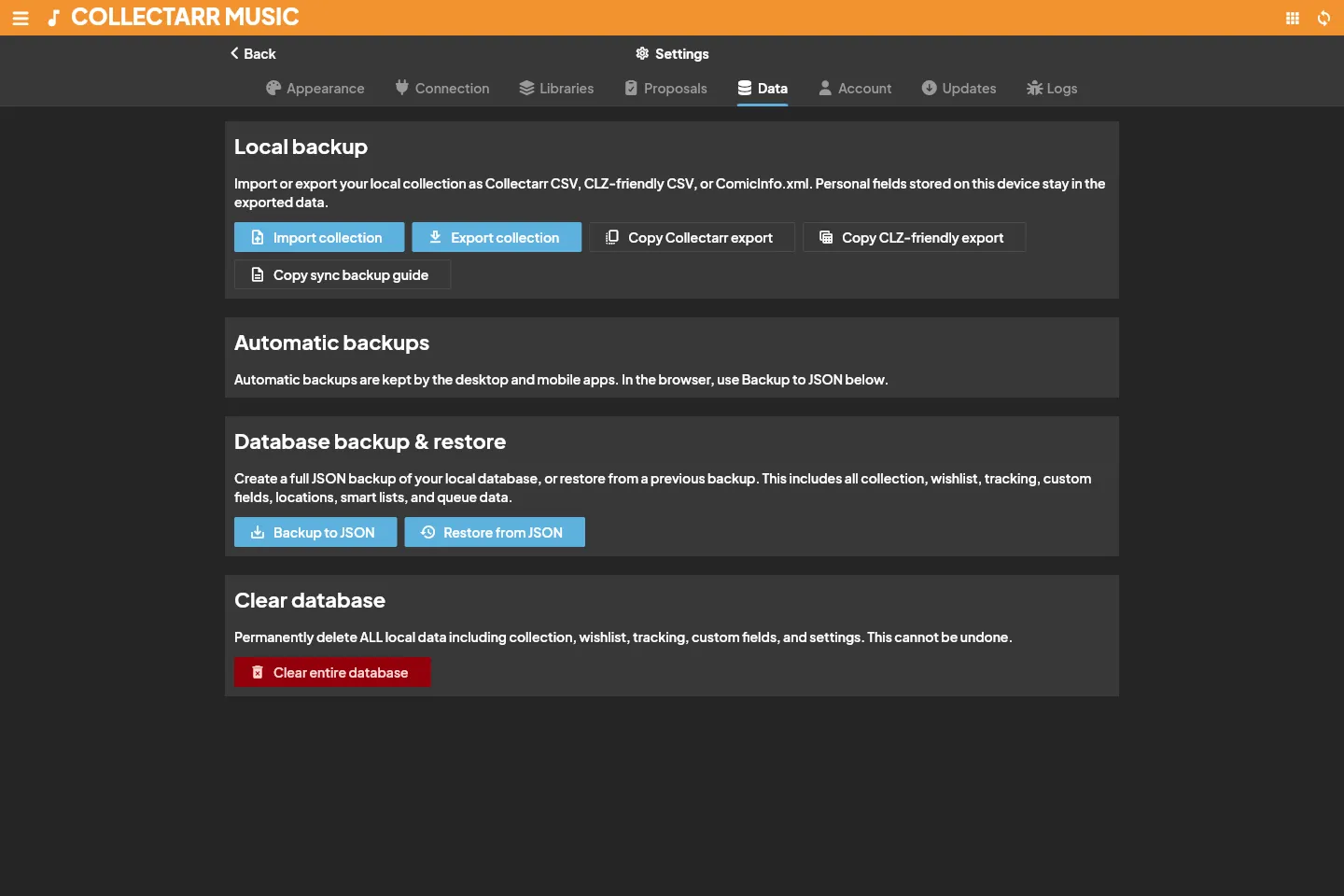
1. Supported Import Formats
Section titled “1. Supported Import Formats”- CSV / TSV / Delimited Text: Import tabular files from spreadsheets (Excel, Google Sheets, LibreOffice Calc) or other collection apps.
- CLZ XML: Collectarr includes native parsing for CLZ Music XML export files, preserving titles, artists, labels, catalog numbers, multi-disc track lists, and personal notes.
- JSON / Database Archives: For complete backups and restoring Collectarr data, see Backup and sync.
2. Step-by-Step Import Workflow
Section titled “2. Step-by-Step Import Workflow”- Select File and Format:
- Choose your file (
.csv,.tsv,.txt, or.xml). - If importing text, select the appropriate delimiter (Comma
,, Tab\t, or Semicolon;) and verify text encoding (UTF-8 recommended).
- Choose your file (
- Column / Field Mapping:
- Collectarr displays each column found in your file alongside a target field selector.
- Map each source column to the corresponding Collectarr field (e.g.
Album→ Title,Band→ Artist,Cat#→ Catalog Number). - Any column left set to (Ignore) will be safely skipped.
- Inspect the Preview Table:
- Review the first several rows parsed from your file to ensure accented characters, dates, and numbers align correctly.
- Choose Destination Collection:
- Select the target collection (e.g. Main Collection) and default collection status (In Collection or Wish List).
- Execute Import:
- Click Start Import. Collectarr creates records and automatically populates manageable pick lists (Artists, Labels, Genres) with new entries found in the file.
[!TIP] Before importing an entire library of thousands of rows, test with a sample file containing 2–5 rows. This confirms date formats (e.g.
YYYY-MM-DDvsMM/DD/YYYY) and multi-value delimiters parse as intended.
Exporting to CSV / TXT
Section titled “Exporting to CSV / TXT”You can export flat text files for external data analysis, sharing with friends, or custom spreadsheet tracking.
- In the library toolbar, click Tools → Export to CSV / TXT (or select specific albums and click Export to CSV / TXT in the selection actions band).
- Configure Scope:
- All items: Exports the entire active library.
- Filtered view: Exports only items currently displayed by active searches or folders.
- Selected items: Exports only explicitly checked records.
- Choose Export Columns:
- Select the fields to include in the output.
- Music Format Note: Choose Disc Formats for individual media types (e.g.,
Vinyl,CD) or Format Summary for combined physical packaging (e.g.,2xVinyl + CD).
- Delimiter and Encoding:
- Select Comma (CSV), Tab (TSV), or Semicolon.
- Check Include header row to keep column names as the first line.
- Click Export and save the file to your local computer.
[!NOTE] CSV and text files are flat representations. They do not store cached binary artwork, custom field schema definitions, or relational track linkages. For complete, restorable snapshots, use Backup Database.
XML Integration Export
Section titled “XML Integration Export”For developers and advanced catalogers, Collectarr provides hierarchical Export to XML:
- Open Tools → Export to XML (or via the batch selection menu).
- Produces a structured XML document containing full album hierarchies, disc structures, track timings, and contributor credits.
Print to PDF
Section titled “Print to PDF”Collectarr features a built-in PDF generator for printing physical catalog binders, insurance records, or inventory checklists:
- Click Tools → Print to PDF (or select records and choose Print to PDF from the batch menu).
- Select Layout Style:
- List Report: Compact, dense rows with customizable columns, optimal for high-density physical inventory binders.
- Cards Report: Visual blocks featuring front cover thumbnails alongside essential catalog details.
- Page Configuration:
- Choose paper size (A4 or US Letter), page orientation (Portrait or Landscape), and margin widths.
- Preview and Save:
- Inspect the real-time PDF print preview directly in the application window.
- Click Save PDF to write the document or Print to send directly to your connected printer.