Editing and personal data
The Collectarr editor allows you to refine catalog metadata, manage multi-disc track lists, credit contributing musicians, and record comprehensive personal collection details.
1. Opening the Editor
Section titled “1. Opening the Editor”To edit an album, use any of the following methods:
- Select an album in your library and click the Edit button (pencil icon) in the right-hand Inspector toolbar.
- Double-click any row or card in the library.
- In Cards, Covers, or Shelves view, hover your mouse over an album to reveal the quick Edit button.
- Press
EnterorCtrl+E/Cmd+Ewhen an item is selected.
2. Catalog Metadata vs. Personal Data
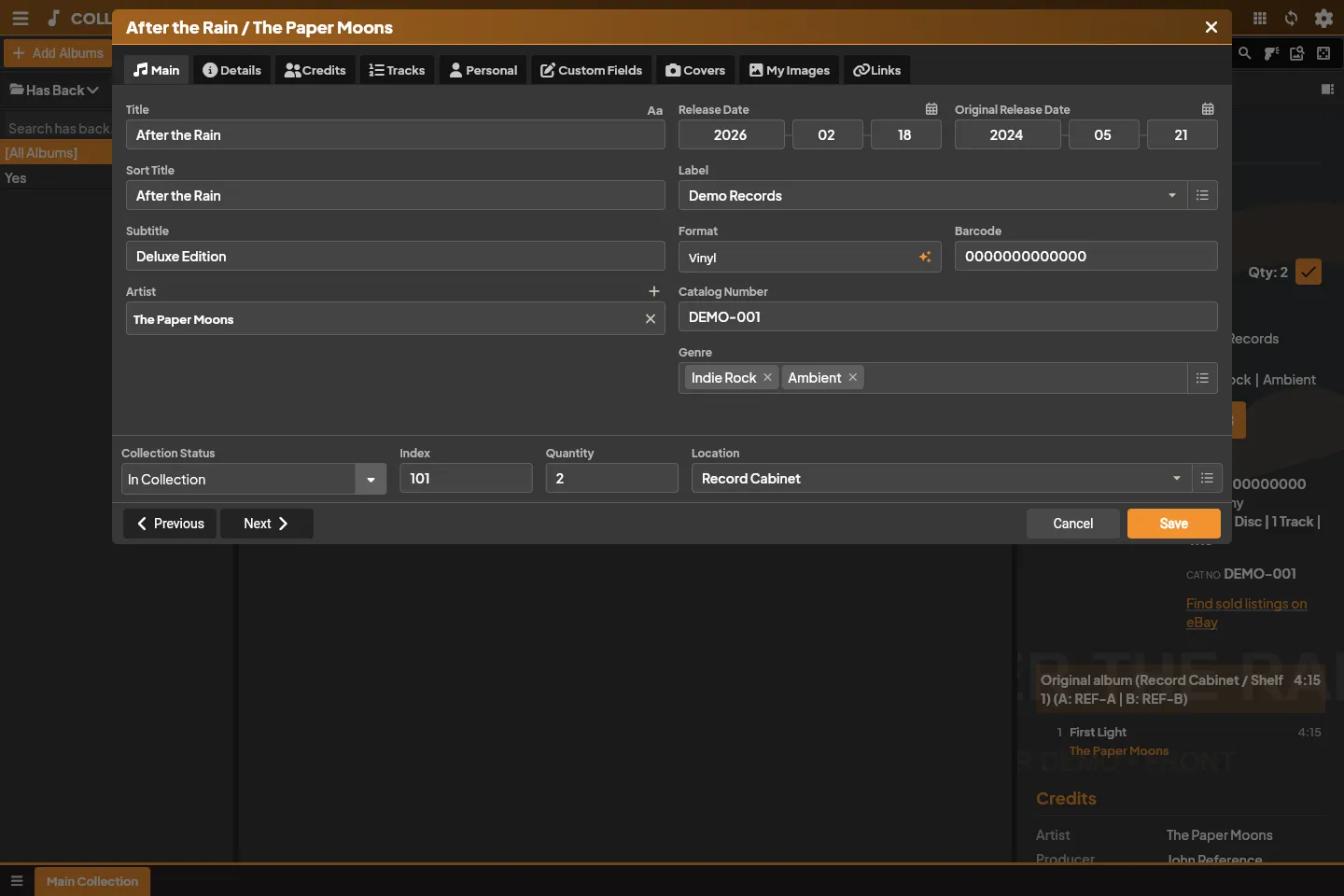
Section titled “2. Catalog Metadata vs. Personal Data”Collectarr maintains a clean separation between shared catalog information (what the item is) and your personal inventory records (information about your specific physical copy):
| Catalog Metadata (Shared) | Personal Inventory Data (Private) |
|---|---|
| Album Title, Sort Title, Subtitle | Collection Status (In Collection, Wish List, etc.) |
| Main Artist and Credited Artists | Personal Index Number and Quantity |
| Release Date and Original Release Date | Storage Location (e.g. Record Cabinet / Shelf 1) |
| Record Label, Catalog Number, Barcode | Condition (Media & Sleeve grading) |
| Packaging (Jewel Case, Digipak, Gatefold) | Purchase Date, Store, and Purchase Price |
| Discs, Track Titles, Positions and Durations | Current Estimated Value |
| Scoped Contributor Credits & Roles | Personal Rating (1–10 stars) |
| Official Front & Back Cover Artwork | Private Notes and Listening History |
[!NOTE] When you propose corrections to the shared online Core catalog, only public catalog metadata is submitted. Your private purchase prices, condition notes, personal images, and storage locations are never sent.
3. Editor Tabs Overview
Section titled “3. Editor Tabs Overview”The editor organizes metadata into focused tabs:
- Main: Primary identifying fields including Title, Sort Title (for alphabetical ordering), Artist, Format, Record Label, Catalog Number, Barcode, Release Date (supports year, year-month, or full date), and primary personal fields (Status, Location, Index).
- Details: Extended release properties such as Country of release, Packaging type, Box Set association, and original sound formats.
- Credits: Contributor information. Add musicians, producers, sound engineers, and arrangers. You can pick roles from your manageable vocabulary and specify the credit scope (Applies to: Entire Album, or a specific Disc). See Music credits.
- Tracks: Manage individual discs and track lists. Click Add Disc on the right of the tab strip to create multi-disc sets. Drag disc tabs to reorder them. Edit track titles, track artists (for compilations), and durations (
m:ss). - Personal: In-depth copy tracking. Record the purchase date, store name, purchase price, current valuation, media condition, sleeve condition, personal rating, and private free-form notes.
- Custom Fields: Populate any user-defined fields you have configured for your library. See Custom Fields.
- Covers: Manage high-resolution front and back cover images. Use Find Online to search for replacement artwork or upload local image files.
- My Images: Store personal photos of your physical copy, such as vinyl matrix runout etchings, obi strips, booklet inserts, or artist signatures.
- Links: External web URLs (e.g. Bandcamp, Discogs, Official Artist Site, Wikipedia).
4. Saving and Navigating
Section titled “4. Saving and Navigating”- Click Save (highlighted in the kind’s accent color) or press
Ctrl+S/Cmd+Sto commit changes to your local database. - Click Cancel or press
Escapeto close the editor. If you made unsaved changes, Collectarr asks for confirmation before discarding edits. - Use the Previous (
<) and Next (>) buttons at the bottom left to page through albums in your current library view without having to close and reopen the editor.
5. Batch Editing (Multi-Edit)
Section titled “5. Batch Editing (Multi-Edit)”When you need to update a property across many albums simultaneously (for example, moving 20 albums to a new storage location, setting a common genre, or changing their collection status):
- In the library, select the target albums:
- Hold
Ctrl(Cmdon macOS) to select individual albums. - Hold
Shiftto select a range of albums. - Click the Select All or selection toggle in the toolbar.
- Hold
- In the selection toolbar or right-click context menu, choose Edit Multiple.
- In the Batch Edit dialog, check the checkbox next to each field you want to modify.
- Enter the new value (e.g. select a new Storage Location or Genre).
- Unchecked fields remain completely untouched on all selected items.
- Check the selected item count at the bottom of the dialog, then click Apply Changes.
6. Merging Albums into a Multi-Disc Set
Section titled “6. Merging Albums into a Multi-Disc Set”If you previously added or imported a multi-disc release as separate single-album entries (for example, Disc 1 and Disc 2 listed as two individual albums in your library):
- Select the separate album entries in your library list.
- Click Tools → Merge Albums in the toolbar.
- In the Merge Albums dialog:
- Select which entry represents the primary metadata (Title, Artist, Label, Release Year, and Cover Art).
- Arrange the order of the discs (e.g. assign Entry A as Disc 1 and Entry B as Disc 2).
- Review the merged track list preview.
- Click Merge. Collectarr consolidates all discs and tracks into a single unified album entry and cleanly removes the duplicate single entries.
7. Linking and Updating from Core
Section titled “7. Linking and Updating from Core”- Link to Core: Associates an unlinked local entry (such as one entered manually or imported via CSV) with the canonical Core catalog. Collectarr searches Core, displays matching editions, and attaches the Core reference.
- Update from Core: If track lists, credits, or artwork in the central database have been corrected or enhanced since you added the album, open Tools → Update from Core to refresh catalog metadata while leaving your personal purchase, condition, and location fields intact.