Backup, sync and sharing
Collectarr is designed with a local-first architecture: your entire music catalog, collection organization, personal notes, and tracking records live in your local database on your device.
Local-first architecture
Section titled “Local-first architecture”- Complete Offline Operation: Your database never depends on an active internet connection to browse, search, sort, or edit albums.
- Role of Collectarr Core: The online Core service provides shared catalog searches, cover artwork, and reference metadata. Linking with Core does not alter your local ownership records.
- Storage Boundaries: On Web builds, your collection is saved to browser storage (IndexedDB). Clearing browsing data or using incognito/private windows starts with isolated empty storage. Always maintain local backups.
Backup and Restore
Section titled “Backup and Restore”To protect your collection against device loss, drive failure, or browser storage clearing, use the built-in backup tools in Settings → Data (or via drawer menu Maintenance → Backup Database).
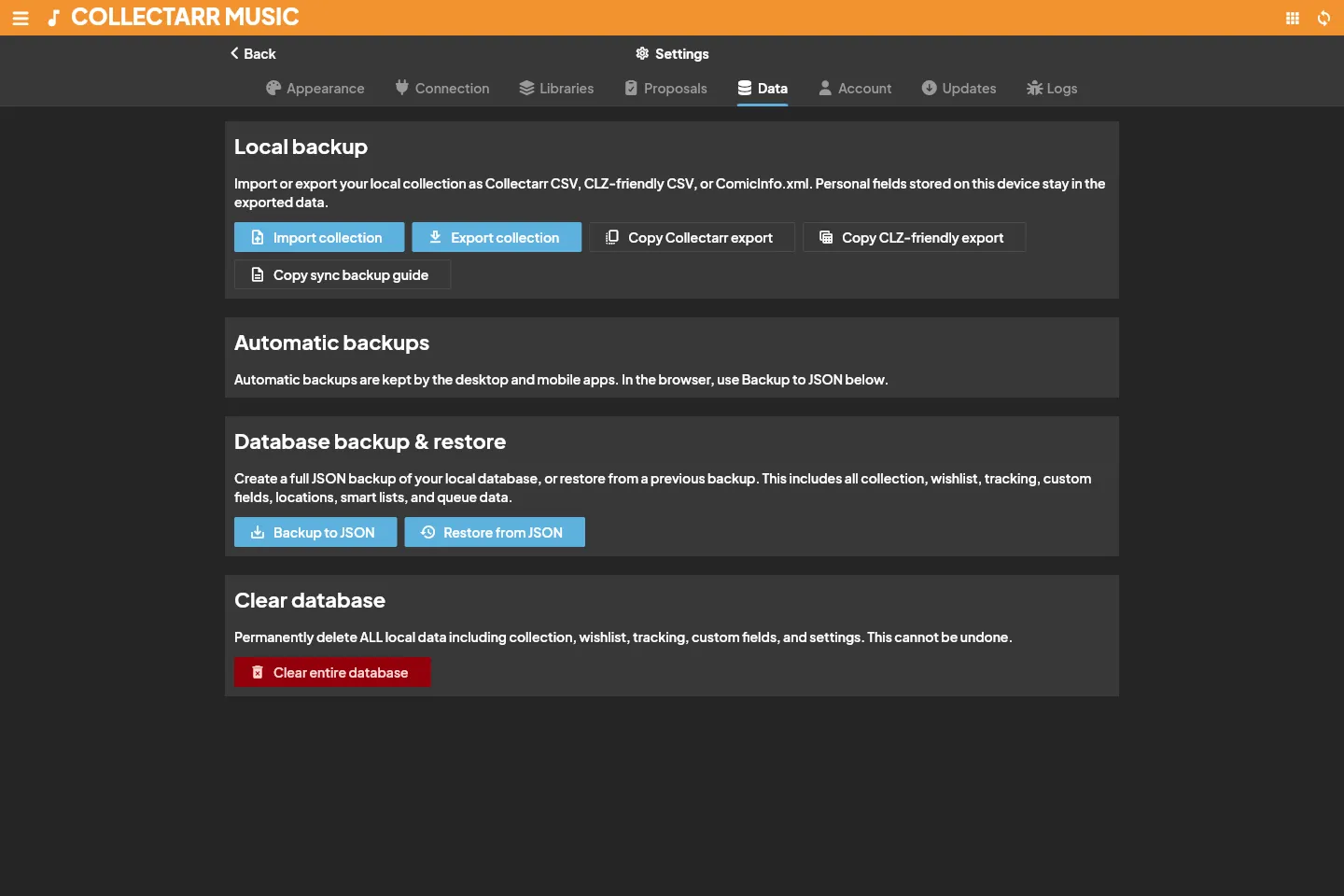
Creating a Backup
Section titled “Creating a Backup”- Open Settings → Data.
- Under Backup & Restore, click Backup to JSON.
- Choose a safe destination folder on your computer (external drive, NAS, or cloud sync folder like Nextcloud, Dropbox, or OneDrive).
- Collectarr creates a complete JSON archive containing:
- All named collections and their ordering
- All album entries, discs, and track listings
- Contributor credits and role hierarchies
- Custom field definitions and their assigned values
- Pick list vocabularies (Artists, Formats, Labels, Locations)
- Personal tracking, condition grades, and loan records
[!IMPORTANT] A CSV or text export is an inventory report, not a database backup. Only a JSON database archive preserves custom schemas, relational disc structures, and tracking histories.
Restoring from a Backup
Section titled “Restoring from a Backup”- In Settings → Data, locate Restore from JSON.
- Click Restore and select your previously saved backup file.
- Review the confirmation dialog. Collectarr verifies file integrity and schema version compatibility.
- Confirm the operation to restore your collection.
[!TIP] Before restoring an older backup over an existing library, create a quick backup of your current database so you can revert if needed.
Personal Synchronization
Section titled “Personal Synchronization”Collectarr separates metadata lookup from personal cloud synchronization:
- Open Settings → Connection to view active connection profiles.
- Sync Status: View pending changes in the synchronization queue.
- Multi-Device Parity: When personal sync is configured, additions, edits, and loan updates made on your desktop automatically propagate to your laptop or mobile devices.
Sharing Your Collection
Section titled “Sharing Your Collection”Collectarr provides flexible sharing options for showing your collection to friends or publishing inventory lists:
- Open the library drawer and select Share Collection.
- Privacy Controls: Before generating a public link or export, choose whether to include or omit sensitive personal fields (such as purchase prices, personal notes, owner labels, or home storage locations).
- You can share your entire library or restrict the shared view to a specific collection (e.g. sharing only your Vinyl collection or your Wish List).