Pick lists and folders
Pick lists maintain controlled, reusable vocabularies across your collection—including Artists, Record Labels, Genres, Storage Locations, Formats, Contributor Roles, and Instruments.
1. Why Vocabulary Consistency Matters
Section titled “1. Why Vocabulary Consistency Matters”When browsing your collection by folder or filtering by genre, subtle inconsistencies in naming will split your albums across separate groups:
- If five albums are tagged with
Pink Floydand one is accidentally entered asPink Floyd(with a trailing space), Collectarr will create two distinct artist folders. - Similarly,
Demo RecordsandDemo Records Ltd.would be filed as two separate labels.
Collectarr’s Manage Pick Lists tool provides centralized maintenance to keep your vocabularies unified and clean.
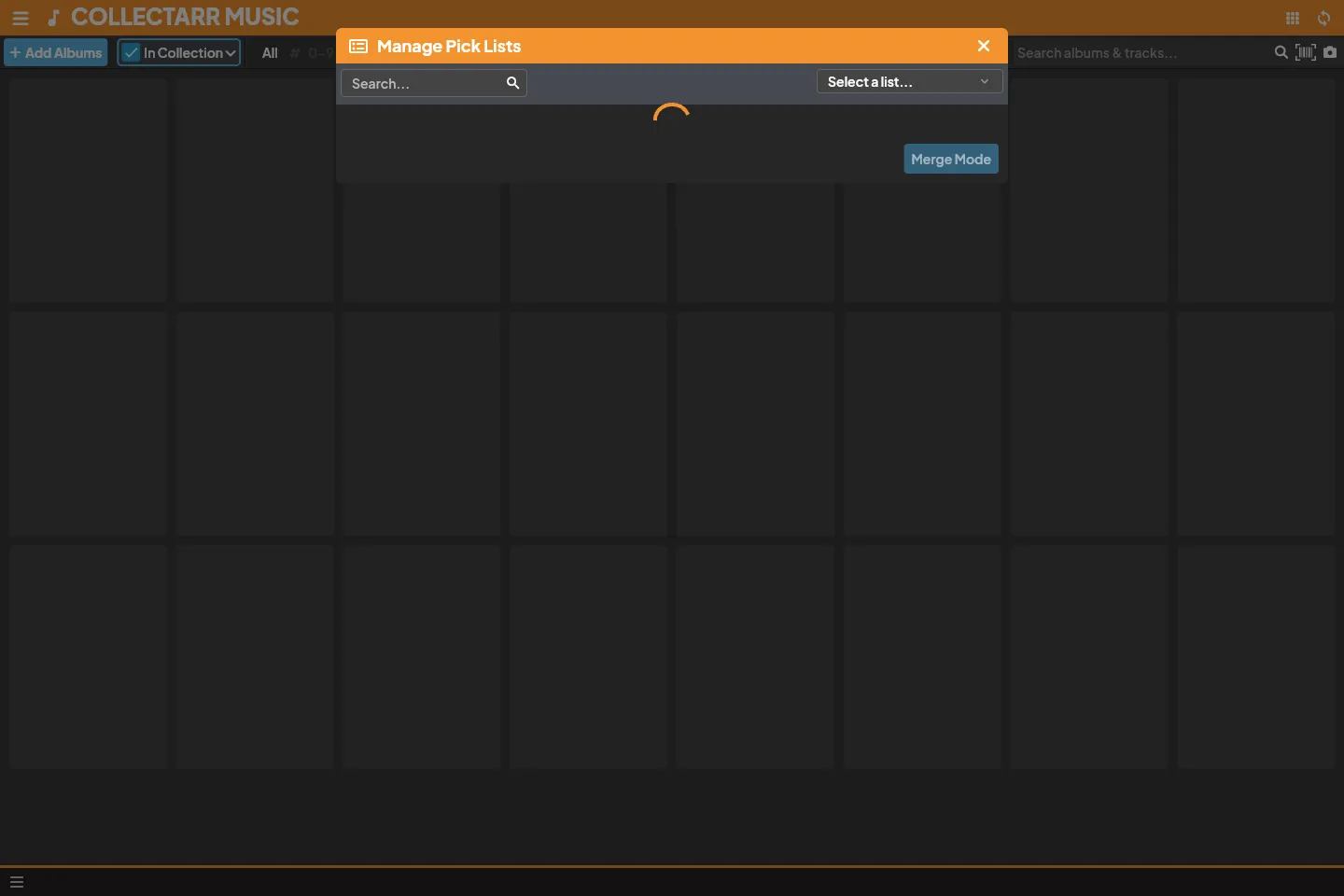
2. The Pick List Manager
Section titled “2. The Pick List Manager”To inspect and manage your vocabularies:
- Open the main navigation menu and select Manage Pick Lists (or click the manage icon next to any pick list field in the editor).
- Use the Select a list… dropdown at the top right to choose the vocabulary you want to maintain:
- Artists / Credited Artists
- Record Labels
- Genres
- Storage Locations
- Formats
- Roles & Instruments
- The table displays every unique value currently in your database, alongside its:
- Name: The display name shown in your library and inspector.
- Sort Name: The normalized name used for alphabetical ordering (e.g.
Bowie, David). - Item Count: The total number of albums, tracks, or credits currently using that value.
3. Maintenance Actions: Add, Rename, Merge, and Delete
Section titled “3. Maintenance Actions: Add, Rename, Merge, and Delete”The Pick List Manager provides four essential operations:
Adding New Values
Section titled “Adding New Values”- Click Add Value to define an entry in advance. You can specify both its display name and custom sort name.
Renaming Values Across Your Library
Section titled “Renaming Values Across Your Library”- If you want to correct a typo or standardize casing (e.g. changing
Demo recstoDemo Records):- Click the edit icon on the target row.
- Update the name.
- Click Save. Collectarr updates every single album and track referencing that value throughout your entire database in a single atomic transaction.
Merging Duplicate Values (Merge Mode)
Section titled “Merging Duplicate Values (Merge Mode)”When albums have been imported or entered with slight name variations, use Merge Mode to combine them:
- In the Pick List Manager toolbar, click Merge Mode.
- Select the duplicate values you want to consolidate (for example, check both
The Paper MoonsandPaper Moons, The). - Select which of the two spellings should be retained as the canonical target name.
- Click Merge. Collectarr reassigns all albums and tracks to the chosen target name and permanently deletes the duplicate entry from your vocabulary.
Deleting Unused Values
Section titled “Deleting Unused Values”- Values with a count of
0(no longer associated with any albums or tracks) can be safely deleted to keep your dropdown choices concise. Click the trash icon to remove an unused value.
4. Pick Lists vs. Custom Field Fixed Choices
Section titled “4. Pick Lists vs. Custom Field Fixed Choices”- Pick Lists: Dynamic vocabularies shared across catalog and personal fields. They automatically grow as you add albums and can be maintained and merged at any time.
- Fixed Lists: Configured strictly when defining a custom field. They restrict input to an explicit set of choices (e.g. Audio Quality: Flac / MP3 / Wav) that does not change dynamically with new entries. See Custom fields.